> ## Documentation Index
> Fetch the complete documentation index at: https://help.xerohost.net/llms.txt
> Use this file to discover all available pages before exploring further.
# Cómo cambiar la Dificultad del Servidor
> Ajusta la experiencia de juego de tu servidor de Minecraft fácilmente desde el panel desde la consola de XeroHost. Puedes elegir entre Pacífico, Fácil, Normal y Difícil.
### Accede a la Sección de Consola
1. Entra al panel de control de XeroHost: [https://panel.xerohost.net](https://panel.xerohost.net)
2. Selecciona el servidor de Minecraft que deseas configurar.
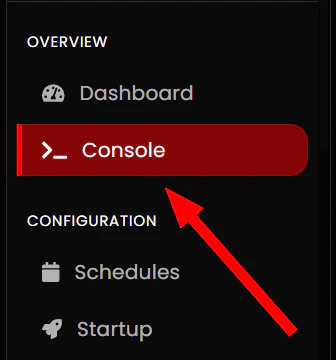
3. En el menú de la izquierda, dirígete a la sección **"Console"**.
 ### Cambiar la Dificultad
Ejecuta el siguiente comando en la consola del servidor:
```bash theme={null}
difficulty [peaceful|easy|normal|hard]
```
### Cambiar la Dificultad
Ejecuta el siguiente comando en la consola del servidor:
```bash theme={null}
difficulty [peaceful|easy|normal|hard]
```
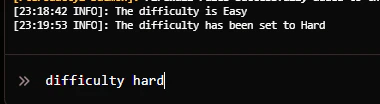 Ejemplos:
```bash theme={null}
difficulty easy
```
```bash theme={null}
difficulty hard
```
El cambio se aplica al instante, sin reiniciar el servidor.
## Verificar la Dificultad Actual
Para comprobar qué dificultad está activa:
```bash theme={null}
difficulty
```
El servidor responderá con algo como:
```text theme={null}
The difficulty is Easy
```
Ejemplos:
```bash theme={null}
difficulty easy
```
```bash theme={null}
difficulty hard
```
El cambio se aplica al instante, sin reiniciar el servidor.
## Verificar la Dificultad Actual
Para comprobar qué dificultad está activa:
```bash theme={null}
difficulty
```
El servidor responderá con algo como:
```text theme={null}
The difficulty is Easy
```